

Your Wifi name is the first thing people see when they scan for networks. A boring or confusing name can make your network hard to spot. A fun or clear name makes life easier. Changing it takes only a few minutes. You do not need any special skills.
The process is almost the same on every router. You log in to the router settings page using a web browser. Then you find the SSID field, which is just a tech word for your Wifi name. Type a new name and save it. That is all it takes. Brands like TP-Link, Netgear, Linksys, ASUS, and D-Link only differ in where the menu sits.
In this guide, you will get step-by-step instructions for all major routers. You will also learn how to find your router IP address and admin login. We will cover what to do after the change, too. Your phones, laptops, and smart TVs will need to reconnect to the new name. Let’s get started.
Wifi Name Generator
WiFi Name Generator
Find funny, cool and clever names for your WiFi network!
How To Change Wifi Name
Changing your Wifi name is quick and easy. You only need your router login and a few minutes. Pick a name that is fun, clear, and safe. Here are 61 ideas to get you started.
- The LAN Before Time – Dino pun
- Pretty Fly for a WiFi – Song pun
- Bill Wi the Science Fi – Science pun
- Wifi Fighter – Gamer pun
- Router Rouser – Playful
- Silence of the LANs – Movie pun
- Loading Please Wait – Joke
- Signal Sailor – Nautical
- Net Neutrality Hero – Witty
- Wi Believe I Can Fi – Song pun
- Tell My WiFi Love Her – Romantic pun
- Click Here for Free Wifi – Cheeky
- Virus Free Zone – Safe joke
- The Promised LAN – Biblical pun
- Hide Yo Kids Hide Yo WiFi – Meme
- Wifi Vibes – Chill
- Ping Pong – Playful
- Byte Me – Sassy
- Packet Party – Fun
- Lag Free Lounge – Gamer
- The Wired Wizard – Magical
- Skynet Lite – Sci-fi
- Cloud Nine Net – Happy
- Home Sweet Router – Cozy
- Data Dojo – Tech
- Bandwidth Barn – Rustic
- Fast and Curious – Speedy
- Nacho Wifi – Punny
- Wifi Not – Playful
- Searching for Signal – Hopeful
- Mom Click Here – Funny
- Unplug Me Not – Cute
- Neighbor Stay Out – Bold
- Stealth Mode On – Secretive
- Cyber Cottage – Cozy
- Lan Solo – Movie pun
- Wifi Ninja – Stealthy
- Moonlight Modem – Dreamy
- Pixel Palace – Gamer
- Surf Shack – Beachy
- Quiet Router – Calm
- Zen Zone – Peaceful
- Spaghetti Net – Foodie
- Gigabyte Garden – Nature
- Turbo Tunnel – Fast
- Orbit Online – Space
- Mystery Network – Intriguing
- Nerd Nest – Geeky
- The Matrix Lobby – Movie
- Hot Spot Hero – Heroic
- Web Wanderer – Explorer
- Lightspeed Lodge – Fast
- Coffee and Connect – Cozy
- Sofa Signal – Relaxed
- Dial Up Dreams – Retro
- Techno Tavern – Fun
- Alpha Access – Leader
- Pocket Portal – Handy
- Frequency Fox – Clever
- Beacon Base – Guiding
- Nova Net – Bright
How To Change Wifi Name Xfinity
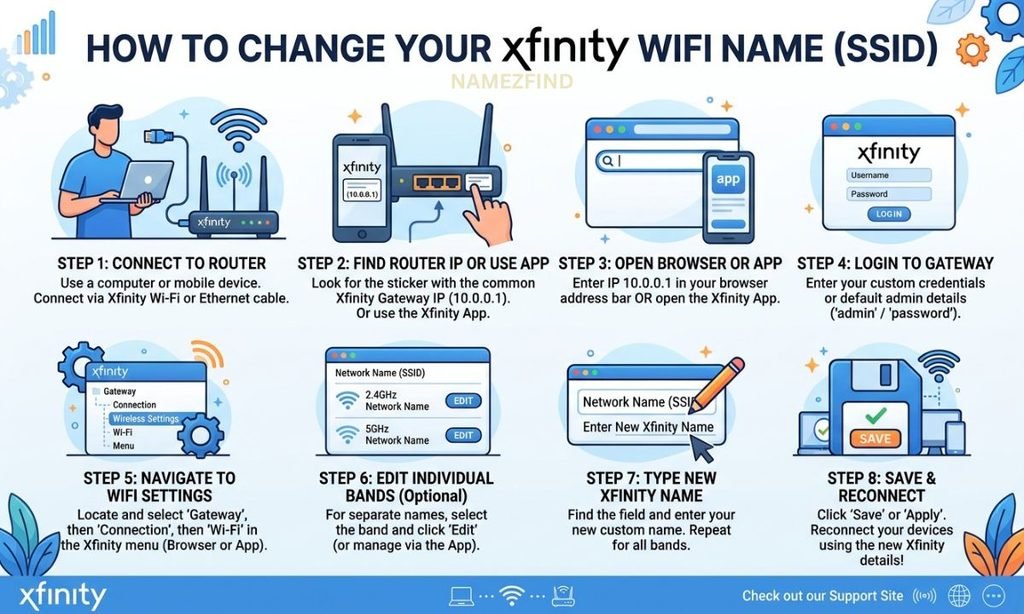
Xfinity users can usually change the Wifi name in the Xfinity app. Open the app and tap your Wifi network. Type a new name and save it. Here are 58 fast and fun names for your Xfinity network.
- Infinite Loop – Endless
- Infinity Pool – Relaxing
- Beyond Infinity – Limitless
- Infinite Stream – Endless flow
- Endless Signal – Unlimited
- Gigabit Galaxy – Cosmic
- Stream Machine – Binge
- Binge Base – Watcher
- Couch Cloud – Comfy
- Remote Control – Humor
- Buffer Buster – Smooth
- Prime Time Pod – TV
- Pop Corn Port – Movie
- Channel Surfer – Browsing
- Cable Cutter – Modern
- Fiber Flash – Fast
- Pulse Pad – Lively
- Epic Episode – Binge
- Season Finale – TV
- Credits Rolling – Movie
- Cinema Signal – Film
- Reel Fast – Speedy
- Stream Dream – Cozy
- Lightning Lounge – Fast
- Wave Rider – Surfer
- Digital Den – Home
- Zoom Room – Quick
- Rapid Router – Swift
- Hyper Hub – Energetic
- Orbit Oasis – Calm
- Sonic Stream – Quick
- Nimbus Nest – Cloud
- Vortex Vibes – Swirl
- Echo Edge – Sharp
- Flux Fortress – Strong
- Quantum Quiver – Science
- Photon Pad – Light
- Aero Access – Airy
- Velocity Villa – Speedy
- Kinetic Kingdom – Energy
- Streamline Station – Smooth
- Ultra Uplink – Powerful
- Mega Mesh – Big
- Pixel Paradise – Visual
- Fast Forward – Quick
- Play Pause Play – Playful
- Replay Room – Repeat
- Loop Lagoon – Cyclic
- Signal Summit – Peak
- Comet Connect – Fast
- Rocket Router – Speedy
- Meteor Mesh – Blazing
- Jet Stream Joint – Swift
- Blaze Broadband – Hot
- Prism Port – Colorful
- Spark Station – Lively
- Aurora Access – Glowing
- Lunar Link – Moonlit
How To Change Wifi Name Spectrum
You can usually change your Spectrum Wifi name in the My Spectrum app. Go to Services and tap your network name. Type a new name and save it. Use these 58 colorful ideas to pick a good one.
- Rainbow Router – Colorful
- Prism Palace – Bright
- Spectrum Spy – Sneaky
- Color Code – Techy
- Violet Vault – Secure
- Indigo Island – Calm
- Azure Access – Sky blue
- Emerald Edge – Green
- Golden Gateway – Valuable
- Amber Alert Net – Warning
- Crimson Connect – Red
- Scarlet Signal – Bold
- Ruby Router – Precious
- Cobalt Cloud – Deep blue
- Teal Tide – Ocean
- Turquoise Tower – Tropical
- Lavender Link – Soft
- Magenta Mesh – Vivid
- Cyan Circuit – Digital
- Sapphire Stream – Gem
- Jade Junction – Calm green
- Coral Cove – Reef
- Peach Packet – Sweet
- Lime Lane – Zesty
- Mint Mode – Fresh
- Orange Orbit – Bright
- Lemon Latency – Zesty
- Berry Bandwidth – Fruity
- Plum Portal – Purple
- Pearl Pulse – Elegant
- Silver Signal – Sleek
- Bronze Bandwidth – Solid
- Copper Cable – Warm
- Onyx Online – Dark
- Ivory Interface – Clean
- Slate Stream – Gray
- Charcoal Channel – Smoky
- Sunset Spectrum – Warm
- Dawn Dial – Early
- Twilight Tunnel – Dusky
- Midnight Mesh – Late
- Neon Nest – Glowing
- Glow Gateway – Radiant
- Shimmer Stream – Sparkly
- Chroma Chat – Colorful
- Hue Hub – Tinted
- Tint Tower – Shaded
- Gradient Grid – Blended
- Palette Port – Artistic
- Pigment Pad – Painter
- Ray Router – Light
- Beam Base – Focused
- Laser Lane – Sharp
- Wavelength Walk – Physics
- Frequency Flow – Smooth
- Optic Oasis – Visual
- Lumen Lodge – Bright
- Radiant Realm – Shining
How To Change Wifi Name Verizon
Verizon users can usually change the name in the My Fios app or on the router page. Look for Wifi settings and tap your network. Enter a new name and apply the change. Here are 58 strong names for your Verizon Wifi.
- Can You Hear Me Now – Classic joke
- Fiber Fortress – Strong
- Glass Strand Grove – Fiber
- Light Lane – Fast
- Photon Highway – Speedy
- Optic Orbit – Fiber
- Verified Vibes – Trusted
- Vertical Horizon – Sky
- Horizon Hub – Wide
- Bold Bandwidth – Strong
- Network Knight – Brave
- Signal Sentinel – Guard
- Reliable Router – Steady
- Coverage King – Wide
- Five Bars Base – Strong
- Full Bars Fiesta – Happy
- Tower Time – Cell
- Metro Mesh – City
- Urban Uplink – City
- Skyline Signal – City
- Gigabit Gate – Fast
- Fiber Frenzy – Wild
- Optic Odyssey – Journey
- Lumina Link – Light
- Beam Bridge – Link
- Core Connect – Main
- Trust Tower – Safe
- Steady State – Stable
- Unbroken Link – Solid
- Zero Drop – Stable
- Pure Pipe – Clean
- Straight Shot – Direct
- Clear Channel – Clean
- Crisp Connect – Sharp
- Sharp Signal – Clear
- Swift Sentinel – Fast guard
- Granite Gateway – Strong
- Iron Interface – Tough
- Steel Stream – Strong
- Titan Tunnel – Huge
- Atlas Access – Strong
- Summit Signal – Peak
- Apex Airwaves – Top
- Pinnacle Pod – Peak
- Vector Vault – Direction
- Anchor Access – Steady
- Harbor Hub – Safe
- Lighthouse Link – Guiding
- Compass Connect – Direction
- Bridge Builder – Connector
- Pathfinder Pad – Explorer
- Trailblazer Net – Pioneer
- Voyager Vibes – Traveler
- Navigator Nest – Guide
- Pilot Portal – Leader
- Captain Connect – Boss
- Admiral Access – Ranked
- Commander Cloud – Leader
How To Change Wifi Name Cox
Cox users can usually make the change in the Panoramic Wifi app. Open the app and tap your network name. Type a new name and save it. Try these 58 sunny and southern names.
- Desert Data – Dry
- Cactus Connect – Prickly
- Saguaro Signal – Desert
- Sunset Strip Net – Golden
- Mesa Mesh – Flat hill
- Canyon Connect – Deep
- Prickly Pear Port – Spiky
- Dusty Router – Rustic
- Tumbleweed Tech – Rolling
- Roadrunner Router – Fast bird
- Coyote Cloud – Wild
- Scorpion Signal – Sting
- Sandstone Stream – Rocky
- Adobe Access – Clay
- Red Rock Router – Stone
- Sun Devil Net – Hot
- High Noon Hub – Midday
- Heatwave Hotspot – Hot
- Oasis Online – Refuge
- Mirage Mesh – Illusion
- Dune Drive – Sandy
- Sagebrush Signal – Plant
- Copper Canyon – Rusty
- Turquoise Trail – Southwest
- Mojave Modem – Desert
- Sonoran Stream – Desert
- Gulf Breeze Net – Coastal
- Bayou Broadband – Swampy
- Magnolia Mesh – Southern
- Pelican Port – Coastal bird
- Cajun Connect – Spicy
- Crawfish Cloud – Southern
- Delta Dial – River
- Coastal Cable – Beachy
- Harbor Hotspot – Port
- Seashell Signal – Beach
- Dolphin Dial – Playful
- Marina Mesh – Boats
- Anchor Away Net – Sailor
- Tidal Tower – Ocean
- Lagoon Link – Calm water
- Palmetto Port – Palm
- Peach State Net – Georgia
- Sweet Tea Signal – Southern
- Porch Swing Wifi – Cozy
- Dixie Data – Southern
- Hickory Hub – Wood
- Bluegrass Beam – Music
- Prairie Pulse – Plains
- Wildflower Wifi – Gentle
- Sunflower Stream – Cheerful
- Meadow Mesh – Field
- Orchard Online – Fruit
- Harvest Hotspot – Autumn
- Barnyard Bytes – Farm
- Cowboy Connect – Western
- Lasso Link – Rope
- Rodeo Router – Wild ride
How To Change Wifi Name Att
AT&T users can usually change the name in Smart Home Manager. Sign in and open your Wifi settings. Edit the name and save. Here are 58 bold names with a global feel.
- Global Gateway – Worldwide
- Blue Globe Net – Earth
- Planet Plug – World
- Worldwide Web Den – Global
- Atlas Airwaves – Maps
- Continental Connect – Wide
- Meridian Mesh – Line
- Equator Edge – Middle
- Polar Pulse – Cold
- Arctic Access – Icy
- Glacier Grid – Frozen
- Iceberg Interface – Hidden
- Frost Frequency – Chilly
- Snowflake Signal – Unique
- Blizzard Broadband – Wild
- Tundra Tech – Cold land
- Northern Node – Cold
- Southern Signal – Warm
- Eastern Edge – Sunrise
- Western Wave – Sunset
- Lone Star Link – Texas
- Texas Tower Wifi – Big
- Austin Airwaves – Music city
- Alamo Access – History
- Longhorn Link – Strong
- Bluebonnet Net – Flower
- Ranch Router – Rural
- Stetson Signal – Hat
- Boots and Bytes – Western
- Spur Stream – Cowboy
- Wild West Web – Frontier
- Pioneer Pipe – First
- Frontier Fiber – New
- Landline Legacy – Old
- Rotary Router – Retro
- Dial Tone Den – Retro
- Party Line Net – Old phone
- Operator Online – Classic
- Switchboard Spot – Retro
- Ring Ring Router – Phone
- Voicemail Vault – Message
- Hello Hotspot – Greeting
- Telegraph Tower – Old
- Morse Mesh – Code
- Dot Dash Dial – Code
- Beacon Broadcast – Signal
- Relay Realm – Pass on
- Transmit Terrace – Send
- Receiver Ranch – Catch
- Antenna Alley – Aerial
- Satellite Stop – Space
- Orbit Outpost – Space
- Galaxy Grid – Stars
- Cosmic Cable – Space
- Stellar Stream – Starry
- Nebula Net – Space cloud
- Asteroid Access – Rock
- Planetary Pipe – World
How To Change Wifi Name
A new Wifi name can match your home and family. Make it cute, warm, and easy to type. Short names work best on every device. Here are 58 sweet ideas for any home.
- Wi Not Stop – Cheerful
- The Family Net – Together
- Casa Connect – Home
- Hearth and Home Net – Cozy
- Love Shack Link – Warm
- Happy Household – Joyful
- Sweet Home Signal – Homey
- Cozy Corner – Snug
- Our Little Nest – Tiny home
- Kitchen Table Net – Family
- Bunny Hop Wifi – Cute
- Teddy Tech – Cuddly
- Honey Hotspot – Sweet
- Cupcake Connect – Sweet
- Muffin Modem – Cute
- Pancake Portal – Breakfast
- Waffle Wifi – Yummy
- Sprinkle Signal – Sweet
- Candy Cloud – Sugary
- Marshmallow Mesh – Fluffy
- Cookie Crumb Net – Snacky
- Butterfly Byte – Delicate
- Ladybug Link – Lucky
- Daisy Data – Flower
- Tulip Tech – Spring
- Rosebud Router – Gentle
- Petal Pulse – Soft
- Blossom Broadband – Fresh
- Sunshine Stream – Bright
- Rainbow Roost – Happy
- Cloud Cuddle – Soft
- Starry Signal – Night
- Moon Muffin – Cute
- Giggle Grid – Laughing
- Smile Signal – Happy
- Joy Junction – Cheer
- Bliss Broadband – Happy
- Cherry Chat – Fruity
- Peachy Port – Nice
- Apple Pie Net – Warm
- Maple Modem – Sweet
- Cinnamon Circuit – Spicy
- Vanilla Vibes – Smooth
- Caramel Cable – Sweet
- Mocha Mesh – Coffee
- Latte Link – Coffee
- Chai Channel – Tea
- Biscuit Broadband – Cozy
- Puppy Pulse – Playful
- Kitten Keys – Soft
- Penguin Ping – Waddle
- Panda Portal – Fluffy
- Koala Connect – Cuddly
- Otter Online – Playful
- Duckling Data – Tiny
- Hedgehog Hub – Prickly cute
- Fawn Frequency – Gentle
- Owl Outpost – Wise
How To Change Wifi Name Optimum
Optimum users can usually update the name in the Optimum app. Open your Wifi settings and tap edit. Pick a new name and save it. Here are 58 top-notch names for your Optimum network.
- Optimum Output – Peak
- Peak Performance – Best
- Prime Pipeline – Top
- Max Mode – Highest
- Ideal Interface – Perfect
- Perfect Pulse – Flawless
- Premium Port – Elite
- Elite Edge – Top
- Supreme Signal – Best
- Ultimate Uplink – Final
- Superior Stream – Better
- Champion Channel – Winner
- Victory Vibes – Winning
- Gold Standard Net – Best
- Platinum Pipe – Rare
- Diamond Data – Precious
- Big Apple Beam – NYC
- Brooklyn Bandwidth – NYC
- Queens Connect – NYC
- Bronx Broadband – NYC
- Harlem Hub – NYC
- Manhattan Mesh – NYC
- Skyscraper Signal – Tall
- Empire State Net – Iconic
- Central Park Port – Green
- Subway Signal – Transit
- Taxi Tower – Yellow cab
- Times Square Wifi – Bright
- Broadway Broadband – Shows
- Liberty Link – Freedom
- Hudson Hotspot – River
- Jersey Junction – NJ
- Garden State Net – NJ
- Shore Signal – Beach
- Boardwalk Beam – Beach
- Long Island Link – Island
- Hamptons Hub – Posh
- Montauk Mesh – Surf
- Connecticut Cloud – State
- Nutmeg Network – CT
- Yankee Yonder – Northeast
- Pilgrim Port – Old
- Colonial Connect – Historic
- Harvest Hill Net – Autumn
- Maple Ridge Mesh – Tree
- Pine Peak Wifi – Forest
- Oak Orbit – Strong
- Birch Broadband – Light
- Cedar Circuit – Fresh
- Willow Wave – Gentle
- Elm Edge – Tree
- Aspen Access – Mountain
- Redwood Router – Tall
- Sequoia Signal – Giant
- Juniper Journey – Evergreen
- Spruce Stream – Neat
- Hazel Hub – Warm
- Laurel Link – Honor
How To Change Wifi Name on Iphone
On an iPhone, you change your hotspot name in Settings. Go to General, then About, then Name. Type a new name and your Personal Hotspot updates. Here are 58 handy names for your phone.
- iPhone Hotspot – Mobile
- Pocket Hotspot – Portable
- Tap to Connect – Easy
- Swipe Signal – Touch
- Pinch and Zoom – Gesture
- Siri Says Wifi – Voice
- Airdrop Alley – Sharing
- Face ID Fortress – Secure
- Lock Screen Link – Private
- Home Button Hub – Classic
- Notch Network – Design
- Dynamic Island Net – Modern
- Retina Router – Sharp
- Pro Max Portal – Big
- Mini Mesh – Small
- Plus One Port – Extra
- Glass Back Grid – Sleek
- Titanium Tower – Strong
- Midnight Black Net – Dark
- Starlight Stream – Soft
- Sierra Signal – Mountain
- Blue Titanium Link – Cool
- Rose Gold Router – Pretty
- Space Gray Space – Dark
- Silver Surge – Shiny
- Emoji Express – Fun
- Text Tone Net – Alert
- Ringtone Router – Sound
- Vibrate Vibes – Buzz
- Buzz Beam – Hum
- Silent Switch – Quiet
- Do Not Disturb Net – Calm
- Focus Mode Wifi – Calm
- Widget Wonderland – Apps
- App Store Alley – Shop
- Camera Roll Cloud – Photos
- Selfie Signal – Photo
- Portrait Port – Photo
- Night Mode Net – Dark
- Live Photo Link – Moving
- Shortcut Station – Quick
- Siri Sync – Voice
- Cloud Backup Base – Safe
- Sync Zone – Updated
- Update Utopia – Fresh
- Beta Burrow – Test
- Dark Mode Den – Dark
- Light Mode Lodge – Bright
- Haptic Hub – Feel
- Tap Tap Tech – Quick
- Cellular Circle – Mobile
- Bars Boulevard – Signal
- Roaming Router – Travel
- Data Dash – Fast
- Charge Chamber – Power
- Battery Boost – Power
- Lightning Lane Link – Charge
- MagSafe Mesh – Magnet
How To Change Wifi Name and Password
Many routers let you change the name and password in one place. Open the router page and find Wifi settings. Enter a new name and a strong password. Here are 58 names that match a secure network.
- Password Is Password – Joke
- Ask Mom for Password – Funny
- Guess the Password – Game
- Key to the Kingdom – Access
- Secret Code Zone – Hidden
- Lock and Key Net – Secure
- Vault Voltage – Safe
- Cipher Circuit – Coded
- Enigma Entry – Puzzle
- Passphrase Palace – Secure
- Safe Haven Signal – Protected
- Firewall Fort – Defense
- Shield Signal – Protect
- Guardian Grid – Watcher
- Sentry Stream – Guard
- Bouncer Broadband – Strict
- VIP Only Net – Exclusive
- Members Only Mesh – Private
- Invite Only Wifi – Select
- Keep Out Kingdom – Warning
- No Trespassing Net – Strict
- Private Property Port – Mine
- Hands Off Hotspot – Stay away
- Look But No Connect – Cheeky
- Wifi Fort Knox – Secure
- Locked Loft – Closed
- Padlock Pad – Locked
- Deadbolt Data – Strong
- Skeleton Key Net – Master
- Master Key Mesh – Boss
- Combo Cabin – Number lock
- Zero Day Zone – Hacker
- Hacker Haven – Techie
- Code Breaker Base – Smart
- Decrypt Den – Solver
- Binary Bunker – Bits
- Hex Hideout – Code
- Token Tower – Access
- Cookie Jar Net – Sweet
- Phish Free Fiber – Safe
- Trojan Free Zone – Clean
- Antivirus Alley – Clean
- Malware Moat – Defended
- Spyware Shield – Protected
- Stealth Signal – Hidden
- Phantom Port – Ghost
- Ghost Gateway – Unseen
- Shadow Stream – Dark
- Cloak Connect – Hidden
- Invisible Inlet – Unseen
- Camo Cable – Hidden
- Whisper Wifi – Quiet
- Hush Hotspot – Silent
- Secret Sauce Net – Special
- Treasure Trove Link – Prized
- Pirate Password – Pirate
- Captain’s Key – Leader
- Riddle Router – Puzzle
How To Change Wifi Name and Password Spectrum
In the My Spectrum app, you can usually edit both fields together. Tap your network, then change the name and password. Save it and reconnect each device. Use these 58 bright names for your Spectrum Wifi.
- Gamma Gate – Ray
- Infrared Inn – Heat
- Ultraviolet Utopia – Light
- X-Ray Express – Beam
- Microwave Mesh – Wave
- Radio Ranch – Wave
- Visible Vault – Seen
- Full Spectrum Fort – Complete
- Color Wheel Wifi – Art
- Prism Pass – Light
- Rainbow Key – Colorful
- Rainbow Code – Bright
- Spectral Safe – Secure
- Hue Lock – Tinted
- Shade Shield – Dark
- Tint Key – Subtle
- Violet Vow – Promise
- Indigo Insight – Deep
- Blue Lock Base – Safe
- Green Gate Guard – Safe
- Yellow Key Yard – Bright
- Orange Lock Lane – Bold
- Red Gate Router – Stop
- Rose Key Net – Pink
- Pink Padlock – Pretty
- Lilac Lock – Soft
- Mauve Mesh – Muted
- Maroon Mesh – Deep
- Navy Net – Dark blue
- Sky Blue Signal – Clear
- Aqua Access – Water
- Mint Key – Fresh
- Olive Orbit – Green
- Lime Lock – Zesty
- Gold Key Grid – Rich
- Sunbeam Safe – Warm
- Moonbeam Mesh – Soft
- Starbeam Stream – Shine
- Glimmer Gate – Faint
- Glint Grid – Flash
- Flicker Fort – Flash
- Sparkle Safe – Shiny
- Twinkle Tower – Star
- Shine Shield – Bright
- Halo Hub – Glow
- Aura Access – Glow
- Glow Guard – Light
- Lumen Lock – Bright
- Candle Code – Soft light
- Lantern Link – Guide
- Torch Tunnel – Fire
- Flame Firewall – Hot
- Ember Entry – Glow
- Spark Safe – Quick
- Flash Fortress – Quick
- Strobe Station – Pulse
- Pulse Padlock – Beat
- Rhythm Router – Beat
How To Change Wifi Name and Password Kinetic Windstream
Kinetic customers can usually use the Kinetic app or the router page. Find Wifi settings, then change the name and password. Save it and reconnect your devices. Here are 58 fast names with a windy twist.
- Wind Whisper – Soft
- Gust Gateway – Breezy
- Breeze Broadband – Light
- Gale Force Net – Strong
- Zephyr Zone – West wind
- Cyclone Circuit – Spin
- Tornado Tech – Wild
- Typhoon Tower – Storm
- Monsoon Mesh – Rain
- Hurricane Hub – Big storm
- Tempest Tunnel – Storm
- Squall Signal – Sudden
- Draft Dial – Airflow
- Windmill Wifi – Turning
- Sail Signal – Boat
- Kite Connect – Flying
- Glider Grid – Soaring
- Falcon Frequency – Swift bird
- Eagle Edge – Sharp
- Hawk Hub – Keen
- Raven Router – Dark bird
- Sparrow Signal – Small bird
- Swift Stream – Quick
- Albatross Access – Far flyer
- Condor Connect – Big bird
- Skylark Link – Singing
- Stormy Stream – Rough
- Thunder Thread – Loud
- Lightning Link – Flash
- Rumble Router – Deep
- Motion Mesh – Moving
- Momentum Modem – Drive
- Kinetic Kick – Energy
- Dynamo Data – Power
- Turbine Tower – Spinning
- Engine Edge – Power
- Piston Port – Machine
- Gear Grid – Cog
- Cog Cloud – Machine
- Rotor Router – Spinning
- Propeller Pulse – Spin
- Jet Junction – Fast
- Rocket Roost – Launch
- Boost Base – Push
- Thrust Tunnel – Force
- Surge Station – Rush
- Rush Router – Fast
- Sprint Signal – Quick
- Dash Dock – Quick
- Gallop Grid – Fast horse
- Mustang Mesh – Wild horse
- Stallion Stream – Strong
- Bronco Broadband – Wild
- Pony Port – Small horse
- Cheetah Chat – Fastest
- Gazelle Gate – Graceful
- Antelope Access – Swift
- Mercury Modem – Messenger
FINAL THOUGHTS
Changing your Wifi name is one of the easiest ways to make your network feel like your own. It only takes a few minutes. You log in to your router settings, find the SSID box, and type a new name. Then you save the change. It works the same way on TP-Link, Netgear, Linksys, ASUS, and D-Link routers.
After you save, your router may restart for a moment. Your phone, laptop, and TV will lose the connection. This is normal. Just pick the new network name and enter your password again. If a device still fails to connect, forget the old network first and then try again.
A good network name is clear, safe, and easy to spot. Skip personal details like your home address or phone number. Keep it short and simple. Now you know how to do it on any router. Go ahead and give your Wifi a fresh new look.
FAQs
How can I change the name of my home Wi-Fi?
Log in to your router settings with a web browser or your provider’s app. Find the SSID or Wi-Fi name box, type a new name, and save.
How do I change my Wi-Fi name using my phone?
Open your provider’s router app or type the router IP address into your phone’s browser. Go to Wi-Fi settings, edit the name, and tap save.
How to change Wi-Fi username and password?
Your Wi-Fi username is just the network name (SSID), and you change it in the same Wi-Fi settings page as the password. Enter a new name and a strong password, then save and reconnect your devices.
Can I change my Wi-Fi name to anything?
Almost. You can use letters, numbers, and some symbols, but most routers allow only up to 32 characters. Avoid personal details like your address or phone number.
How do I rename my WiFi network?
Sign in to your router admin page and open the Wireless or Wi-Fi menu. Change the network name, click apply, and wait for the router to restart.
How do I stop others from using my Wi-Fi?
Set a strong password with WPA2 or WPA3 security. Then change the default admin login and check your connected devices list to remove anyone you don’t know.

Hi, I’m CH Zahid, the founder of NamezFind. I created this website to help people find names that are meaningful, easy to search, and simple to understand. My goal is to make your search for the perfect name quick and enjoyable.